youmessages Knowledge Base
- Knowledge Base
- WhatsApp Business API
- STEP 3. Connecting and configuring WABA channels
Go to the "Settings" section of WhatsApp Business API by YouMessages, then navigate to WhatsApp Business API (WABA).
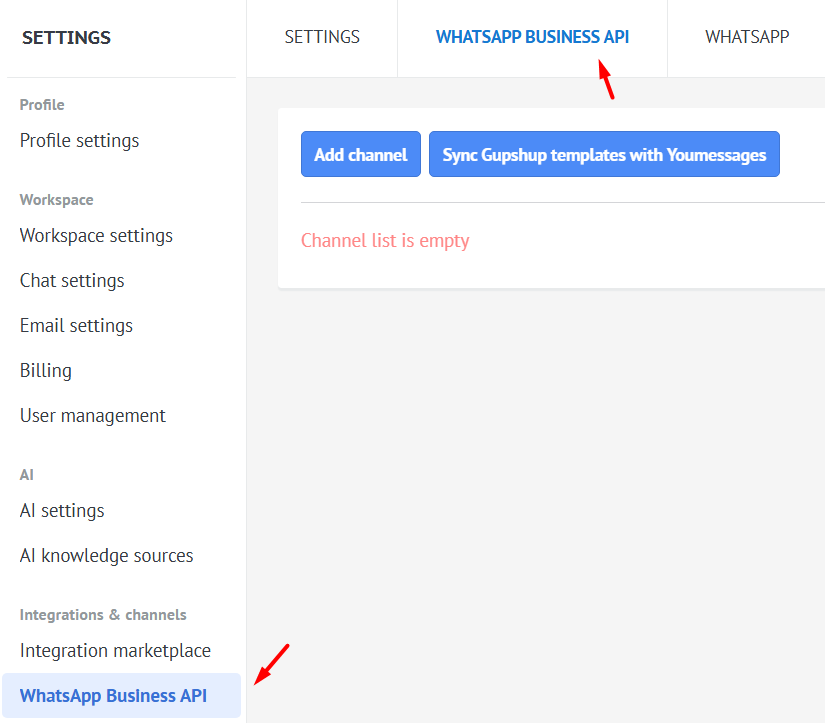
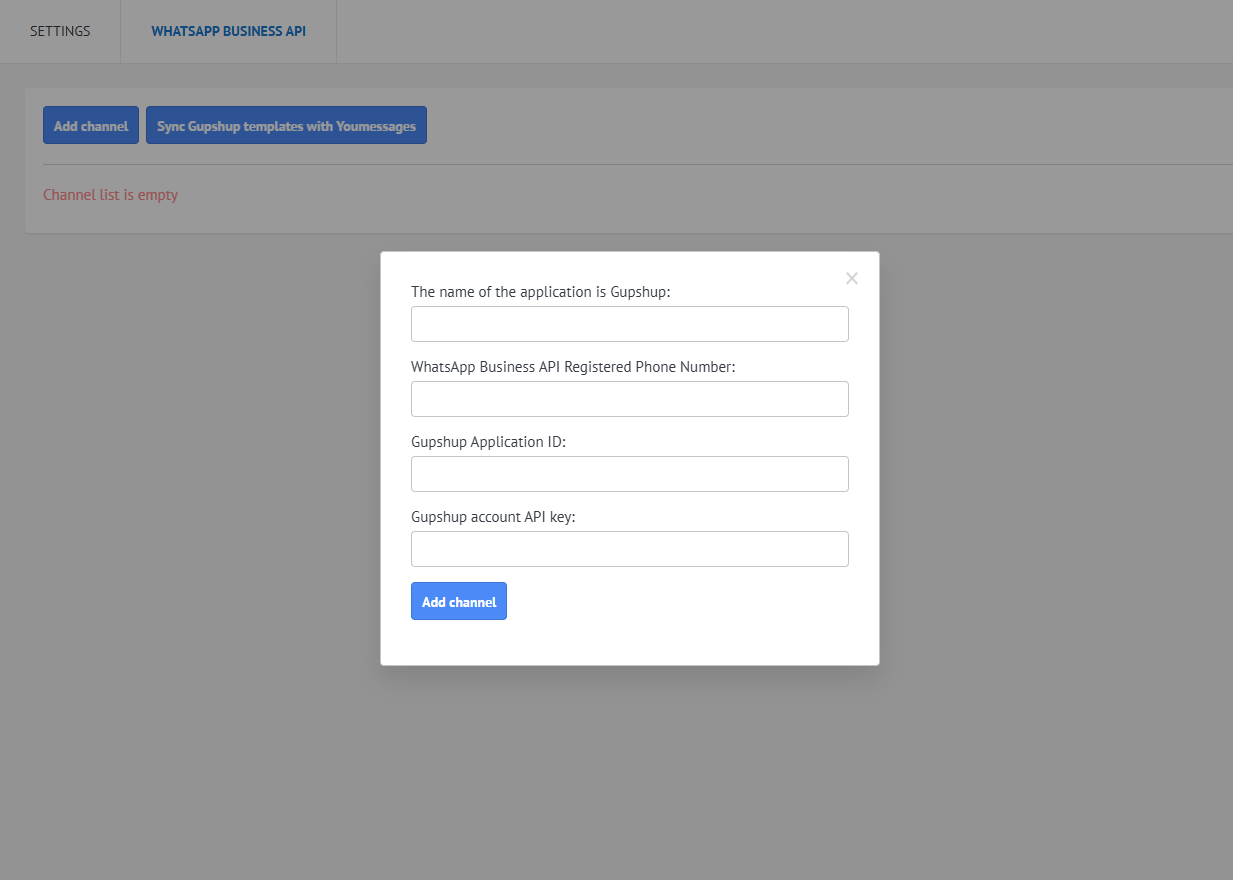
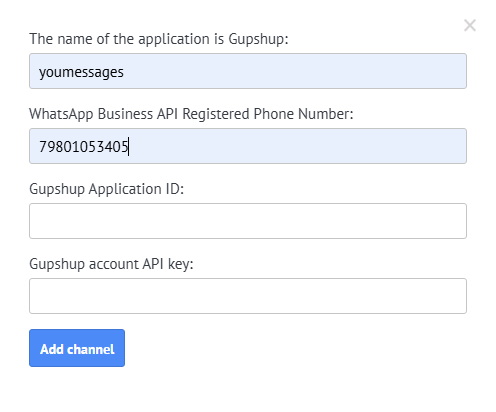
Click on "Add channel," which opens a window where mandatory fields need to be filled. The data should be taken from your Gupshup personal account https://www.gupshup.ai/ (further instructions are provided below)
If you don't have a Gupshup account, first register and create an application, then continue with the settings
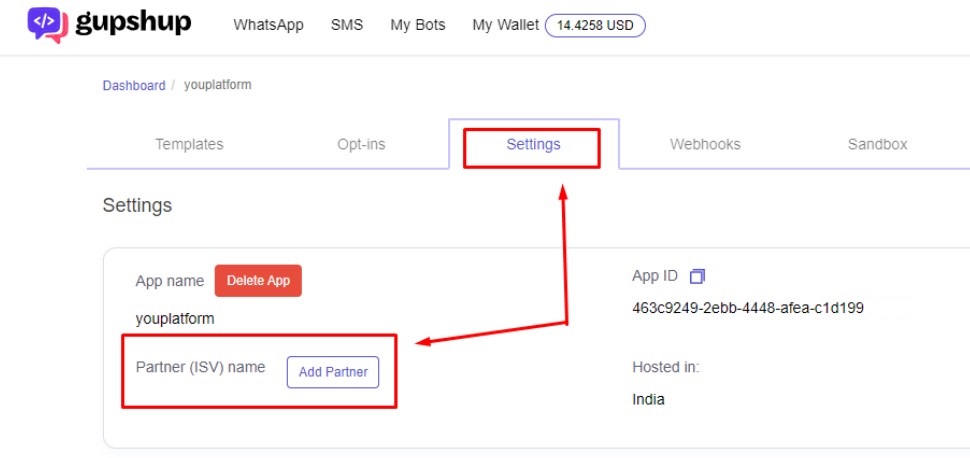
In the Gupshup personal account, go to "Whatsapp", select the application that needs to be integrated with the widget, then go to Settings, and add Partner ID - 1874 (required for correct integration operation)
If another partner was previously connected, replace the ID with 1874
Copy the Gupshup application name and registered WhatsApp Business API phone number
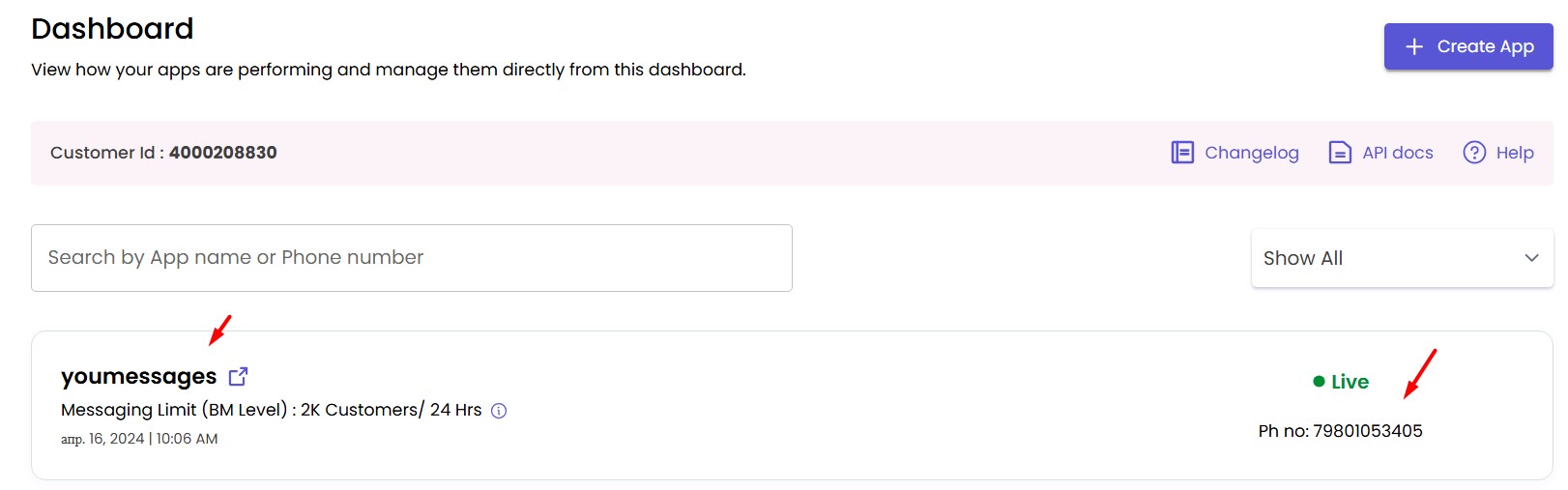
Add them to the corresponding fields in the widget settings
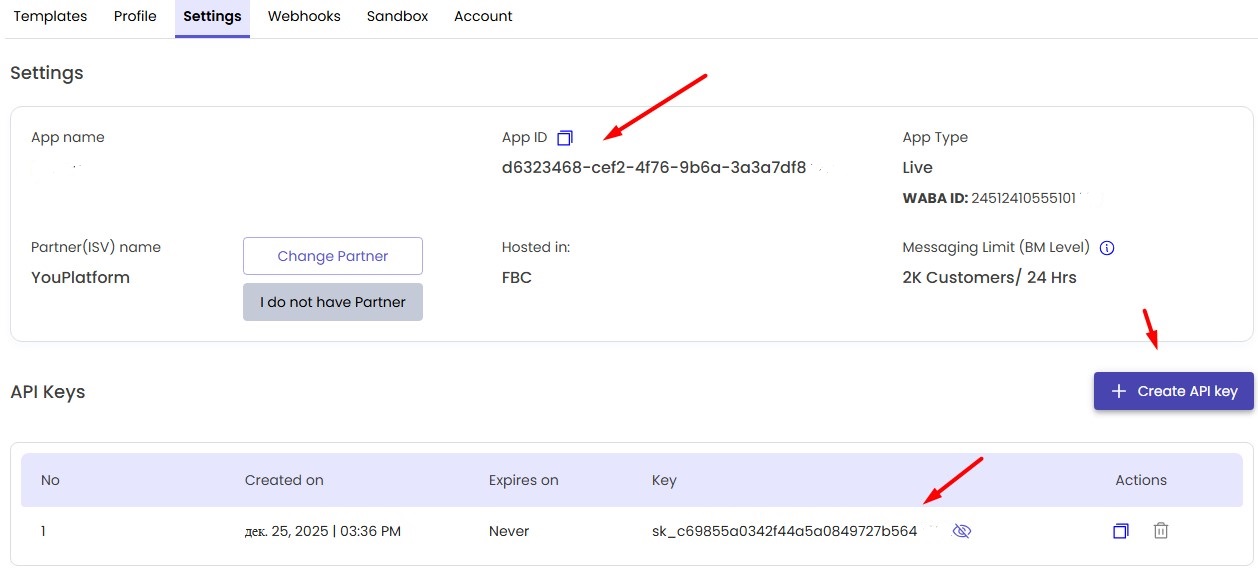
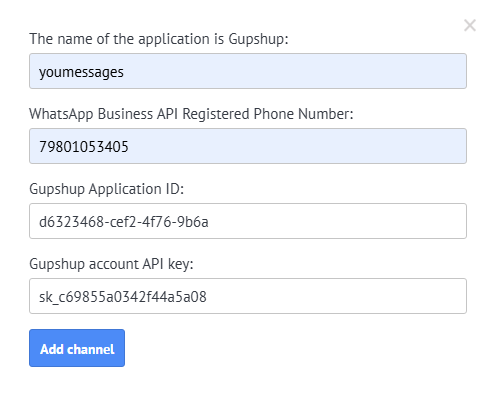
Go to the application settings and copy the Gupshup App ID and Gupshup Account API key (if there's no API key, create one by clicking "Create API Key")
Adding to the widget settings in Kommo
Click on "Add Webhook".
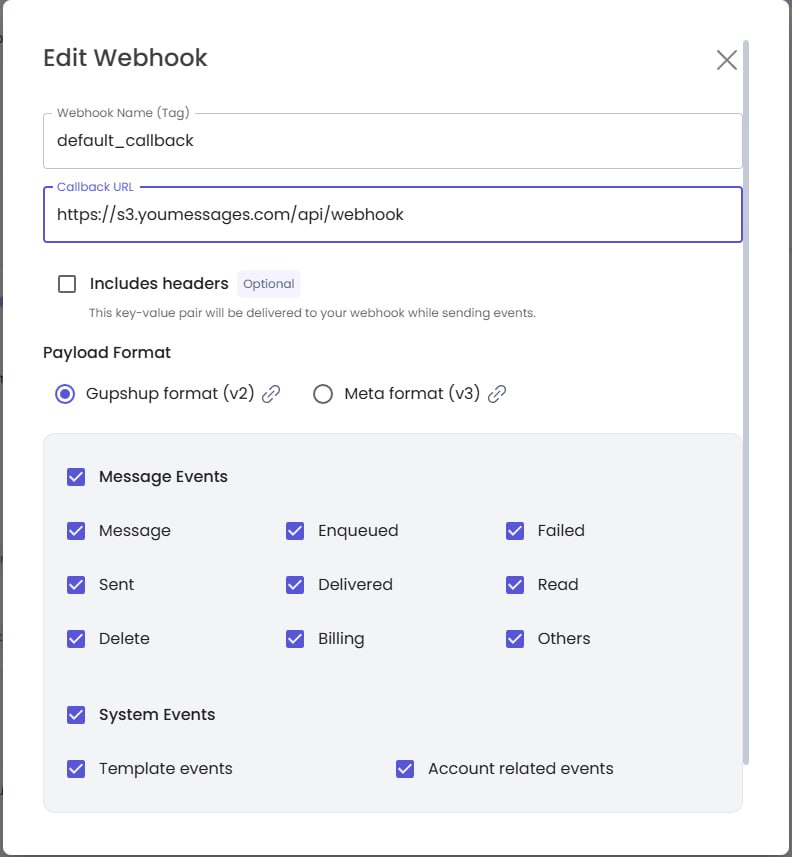
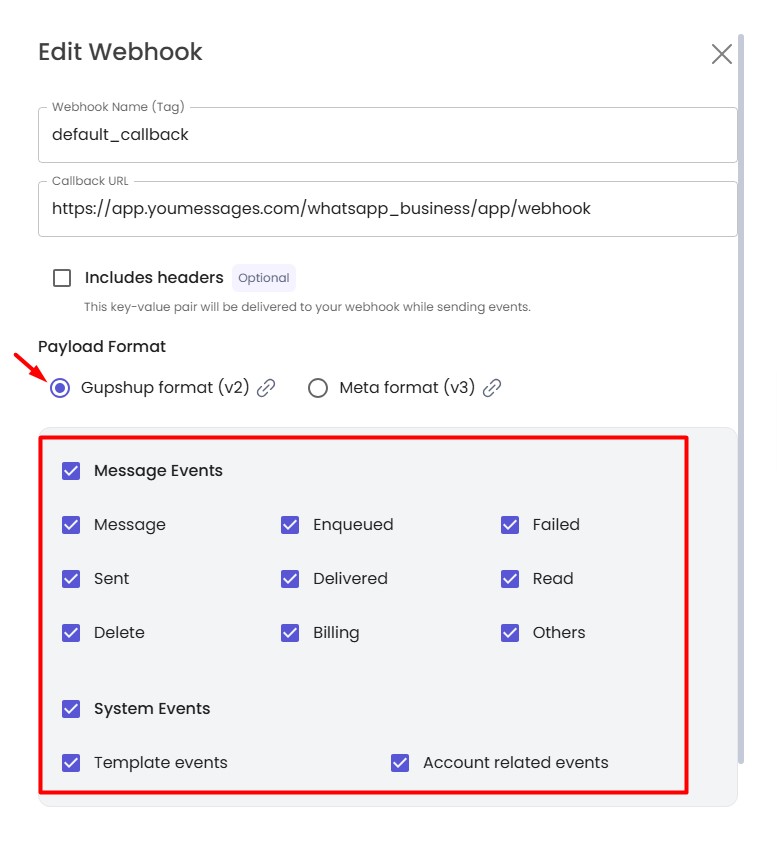
Webhook Name (Tag) add: default_callback
Callback URL add: https://s3.youmessages.com/api/webhook
Payload Format select: Gupshup format (v2)
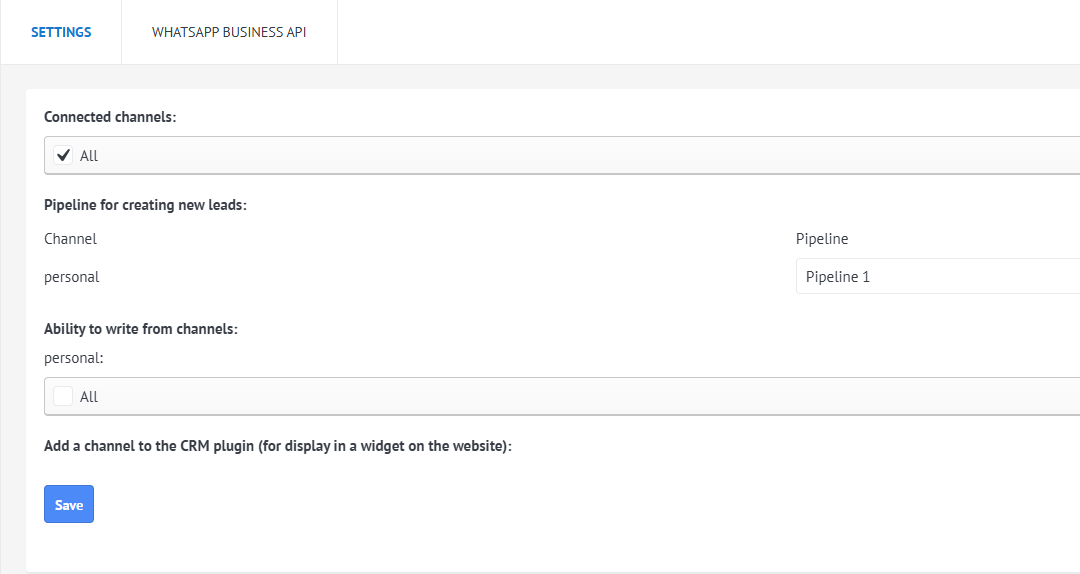
After setting up in Gupshup go to the widget settings in Kommo, select the channel and choose the pipeline where new leads will be created.
Select users who can send messages through this channel. If needed, add the channel to the CRM plugin (Chat button). Read more at the link: https://help.youmessages.com)