youmessages Knowledge Base
- Knowledge Base
- WhatsApp Cloud API сalls and messages
- STEP 10. Creating WACA templates
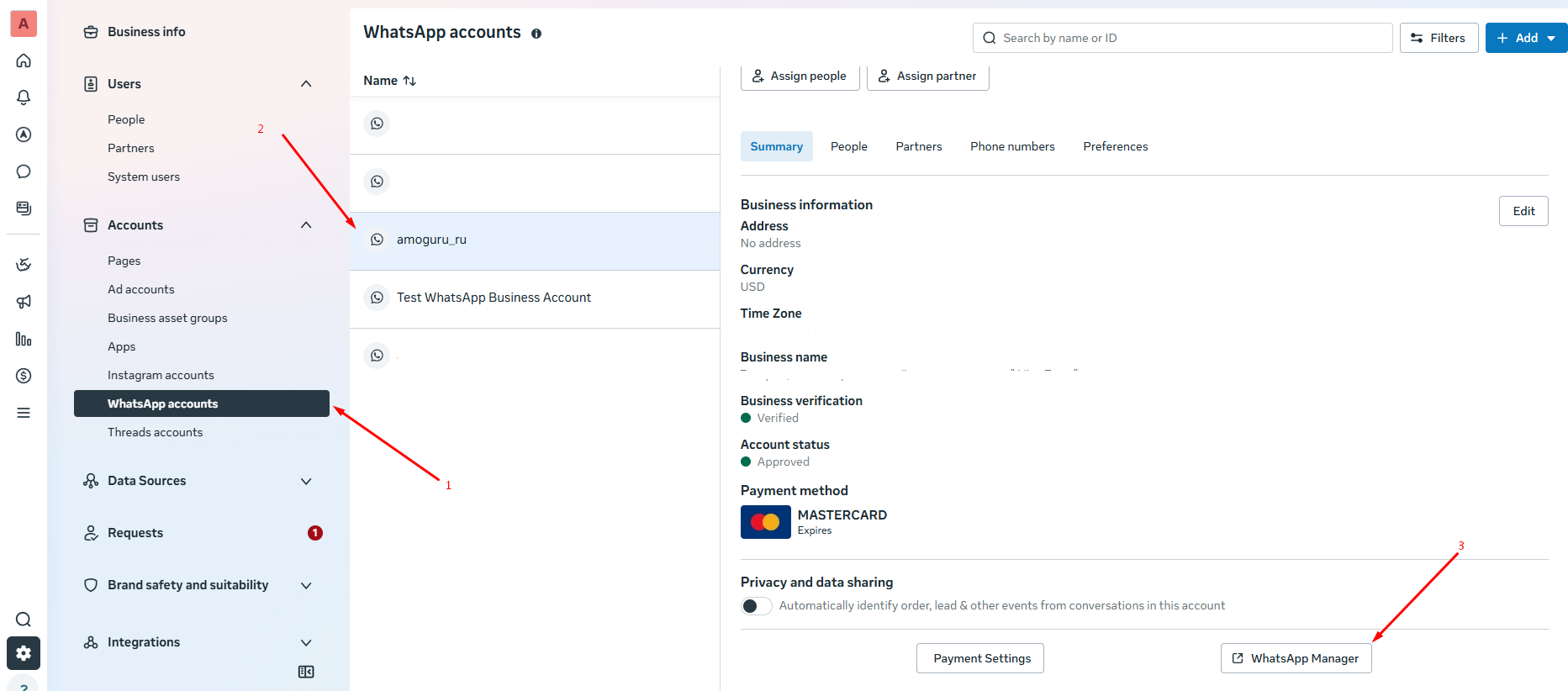
Template creation happens inside the app in Meta* Business Suite. Go to your Business Portfolio, select the WhatsApp account with the connected number, and click on WhatsApp Manager.
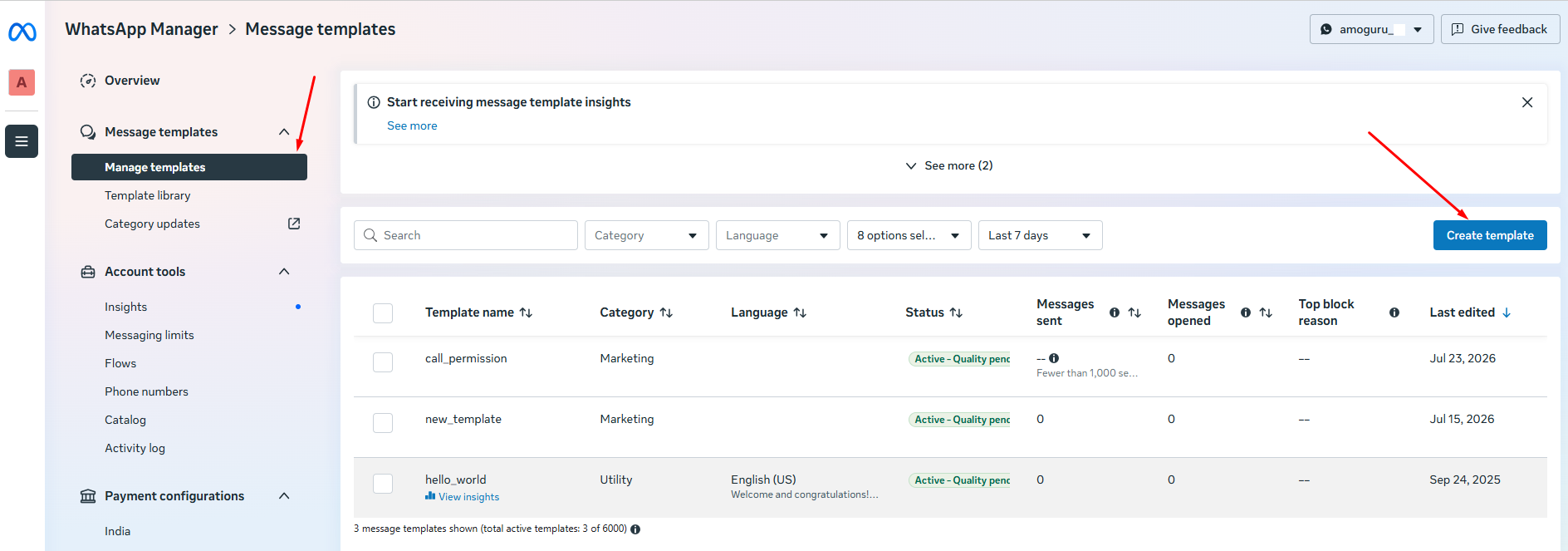
To create a template, you need to click the "Create Template" button.
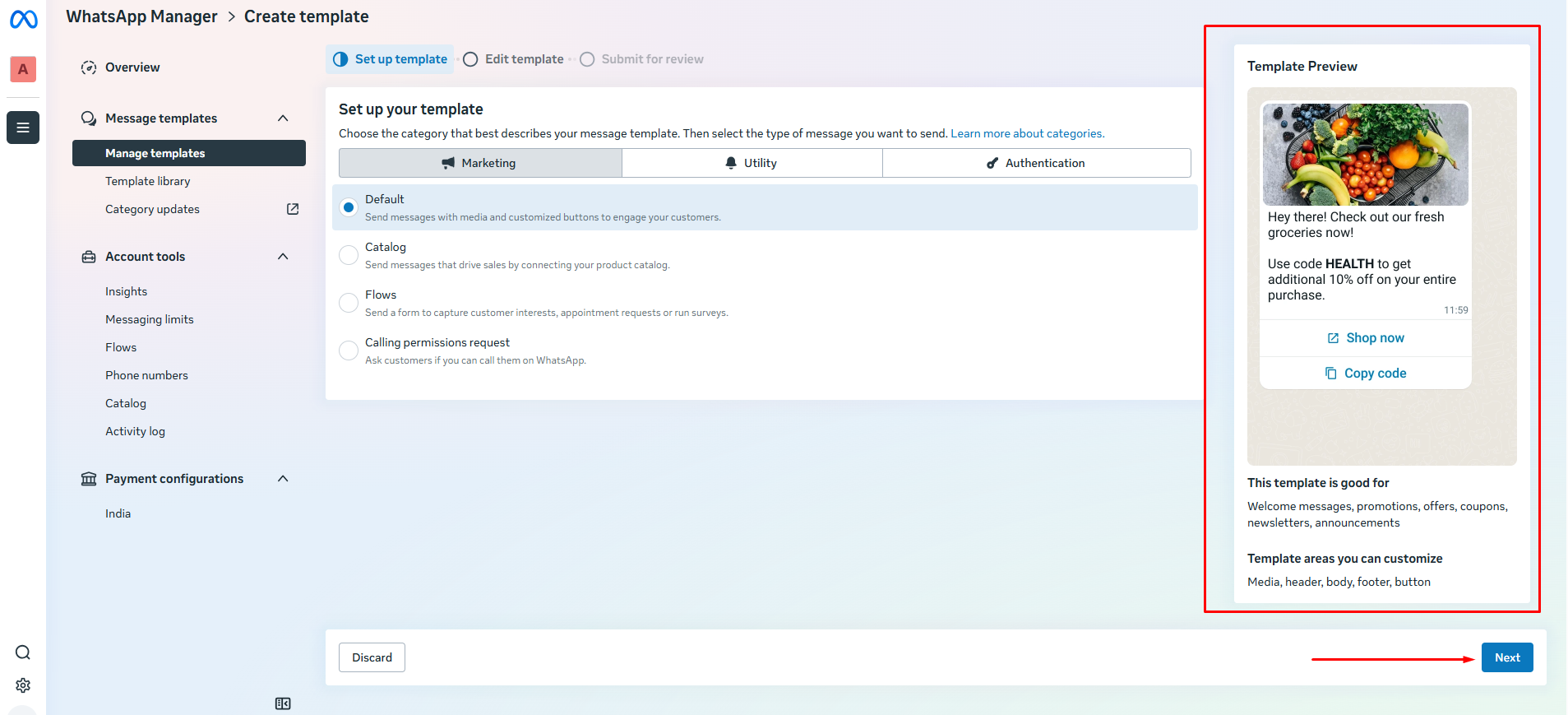
First, you need to select the template category. There are three types: Marketing, Utility, and Authentication. Read more about the categories here: https://developers.facebook.com/documentation/business-messaging/whatsapp/templates/template-categorization
Select the template type; a preview is also available on the right. Click Next.
Next, we create the template:
1. Template name — arbitrary. (Recommendation: add the channel name to the template title. For example, hello_youmessages);
2. Variable type — (Variables are placeholders used to dynamically insert specific information or data into your template. You can insert a title or number.
Examples:
Title: {{order_id}}
Number: {{1}})
3. Header — a short line of text at the top of the message (optional). A variable can be added to the header.
4. Body text — maximum 1024 characters. Variables, emojis can be added, text can be edited.
5. Footer — a short line of text at the bottom of the message (optional).
6. Buttons — buttons that allow clients to reply to your message or perform the desired action. No more than 10 buttons can be added. If more than 3 buttons are added, they will be displayed in a column.
7. You can set the message validity period — a custom validity period during which your marketing message must be delivered before its expiration date. If the message is not delivered within this period, you will not be charged, and your client will not see the message.
8. We send it for review to Meta. Template review in Meta takes no more than 24 hours.
After creating the template, you must click the "Synchronize Templates" button in the Widget Settings in Kommo.
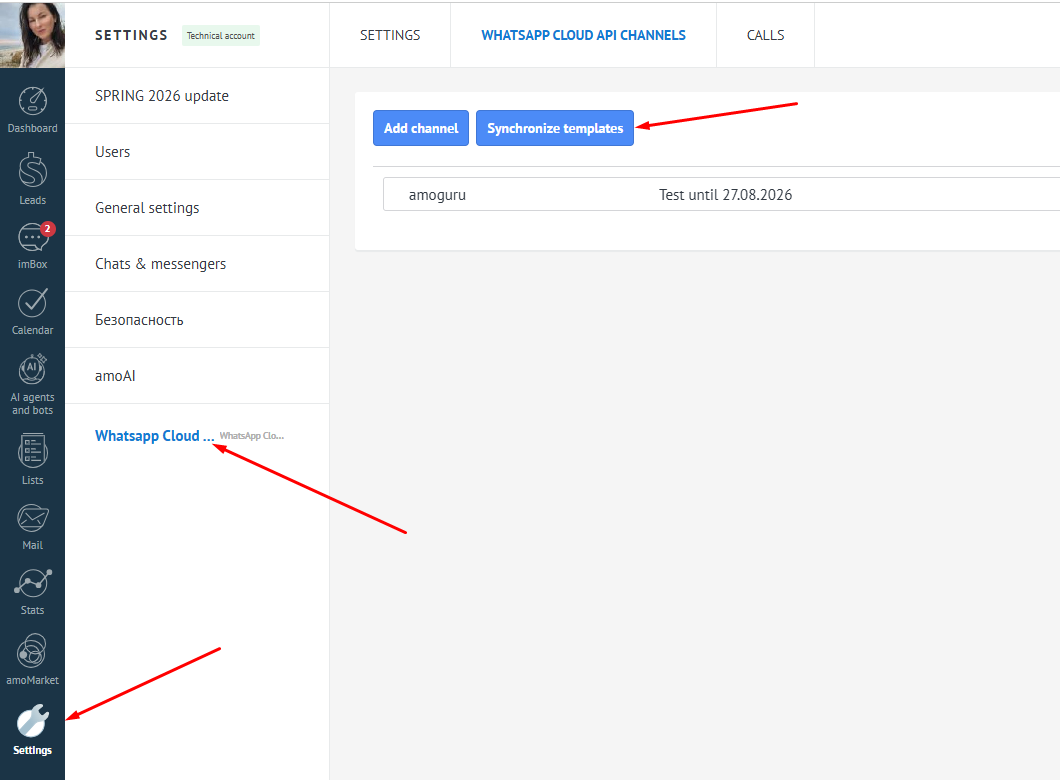
After that, the template created in Meta* will appear in the Chat Templates in Kommo in the Automations → Templates.
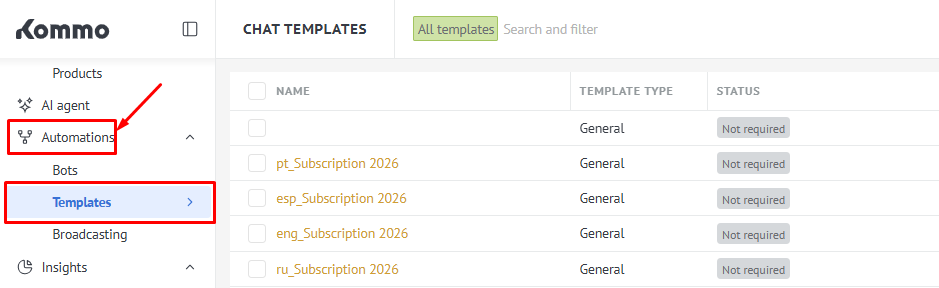
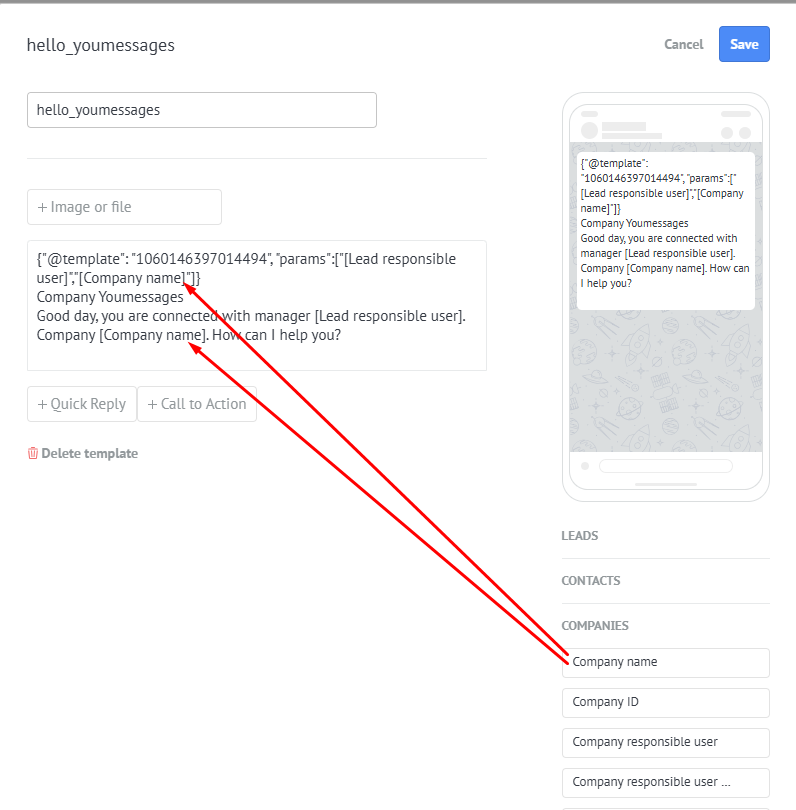
Next, we substitute the necessary variables in the template (if any are present). Variables in the template are displayed in double curly brackets.
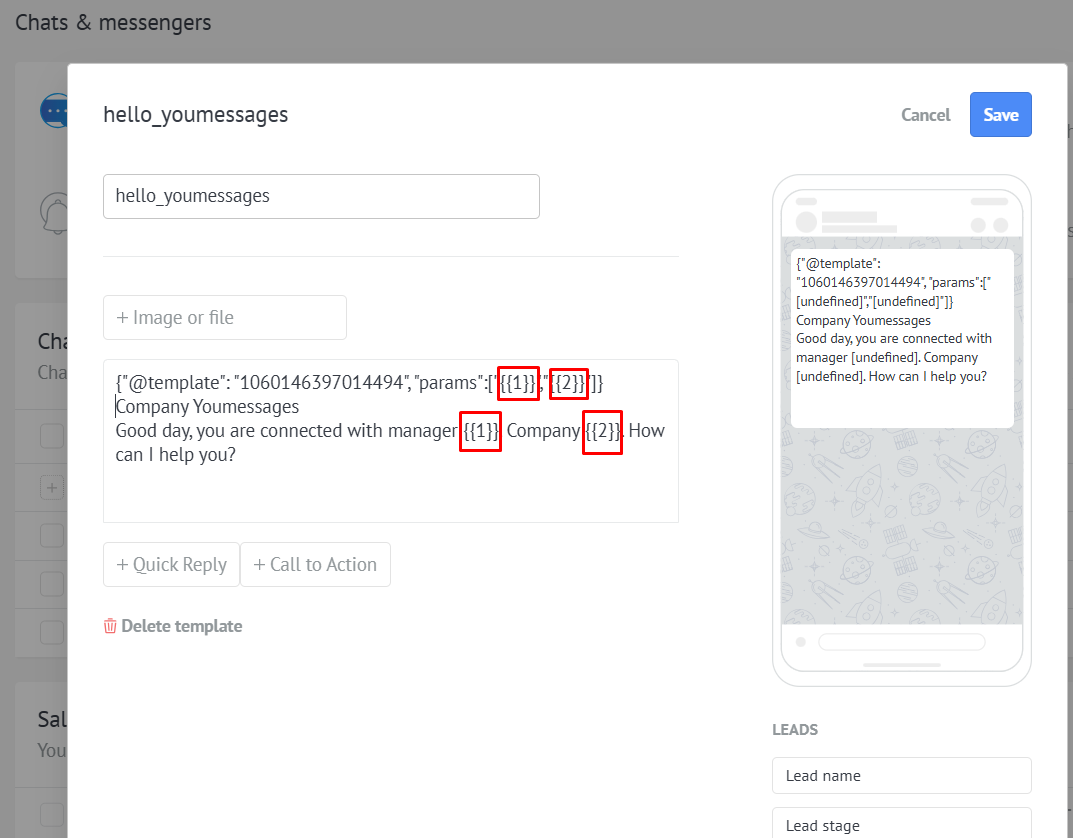
The values for the variable fields are specified in the template itself
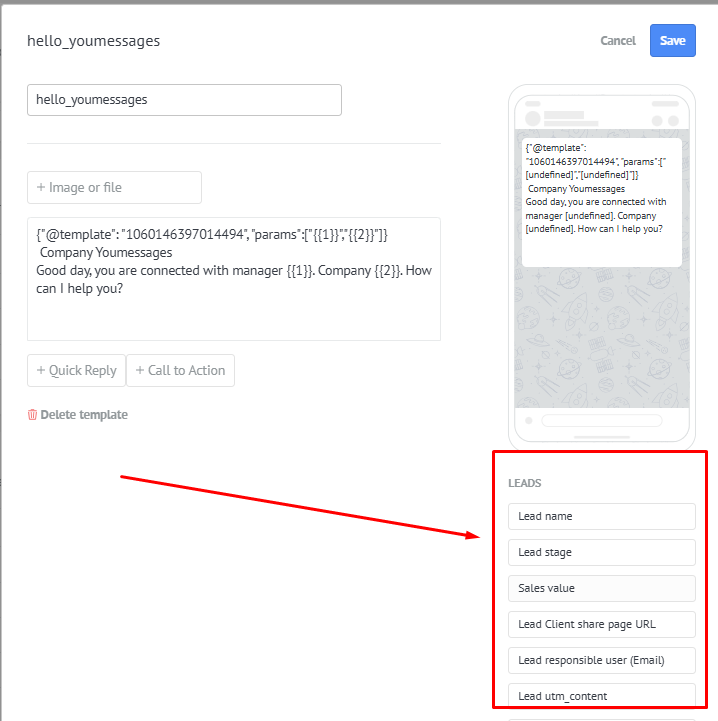
We remove the variables in double curly brackets and substitute the necessary field values instead of them
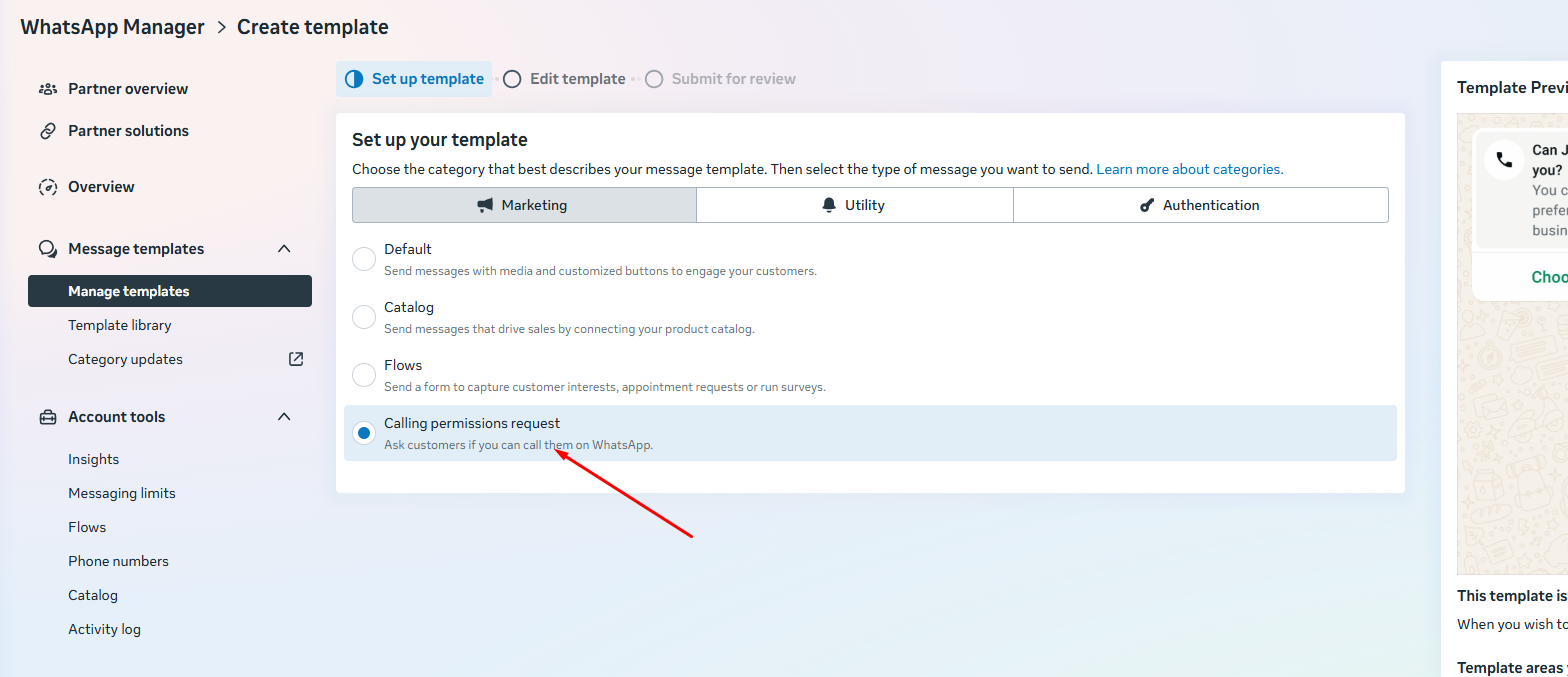
Before making a call to the client, you must send them a template message requesting permission to make the call. (how to create it is described in STEP 10. Creating WACA Templates).
Creating a template message with a call request is also done in Template Management in WhatsApp Manager. When creating it, select the Call Permissions Request category.