
youmessages Knowledge Base
- Knowledge Base
- WhatsApp Cloud API сalls and messages
- STEP 9. Launching a WhatsApp number
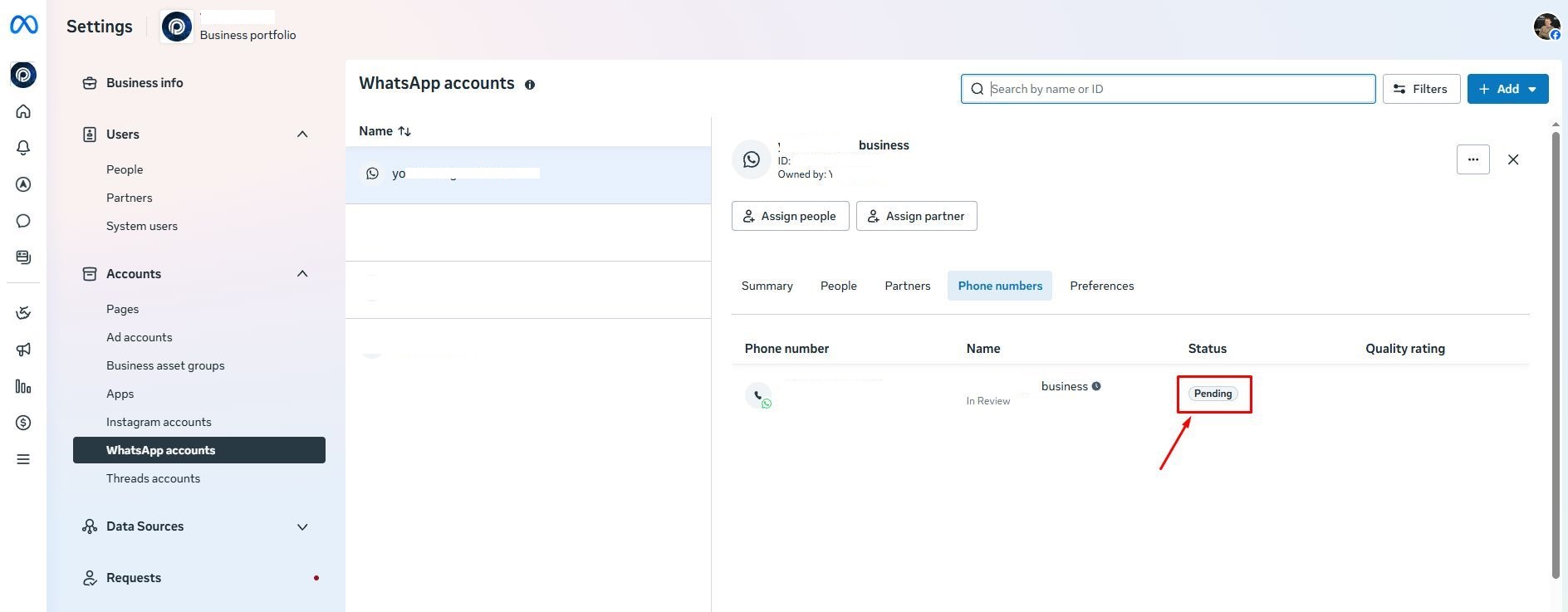
In some cases, the number may fall into "Under Review" status.
To check the number status, go to Meta* Business Suite, access your business portfolio, select the WhatsApp account with the connected number, and navigate to Phone numbers.
Once the number is activated, you will see the "Connected" status.
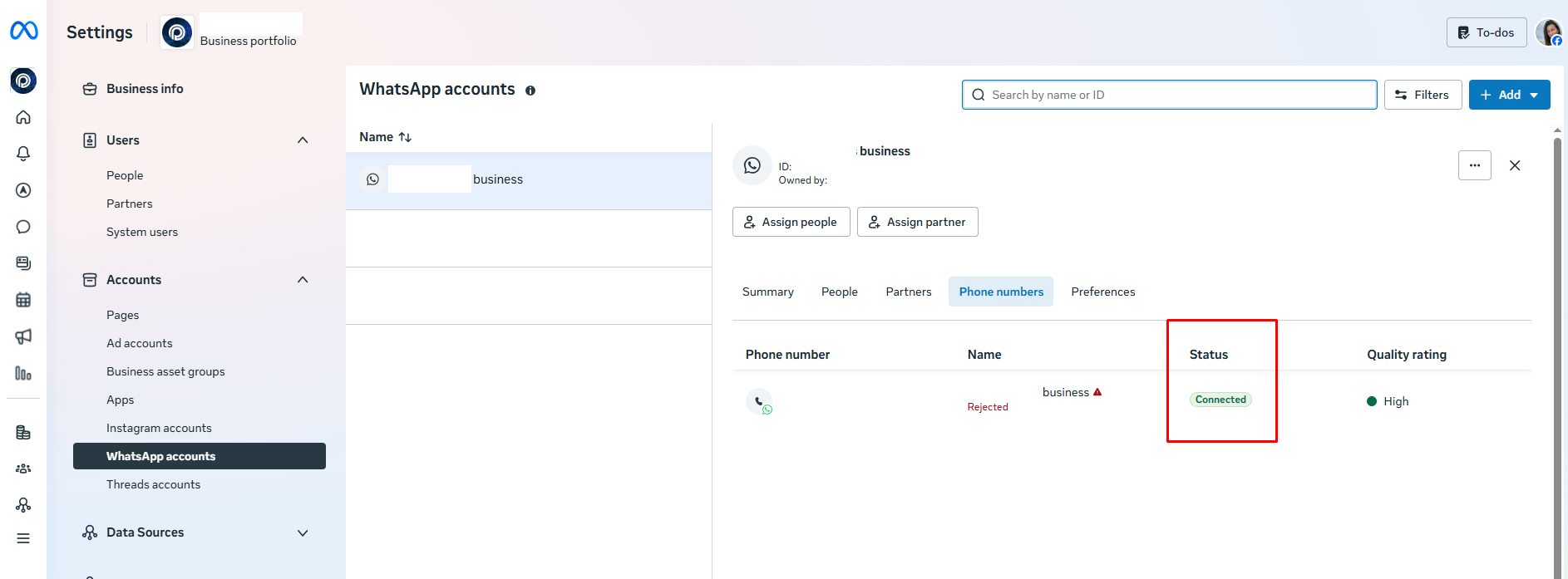
To activate the number, follow these steps:
1.Go to the page Meta* for Developers;
2. Go to "API Setup" (see Step 4);
3. Select the connected number;
4. Click the "Generate Access Token" button.
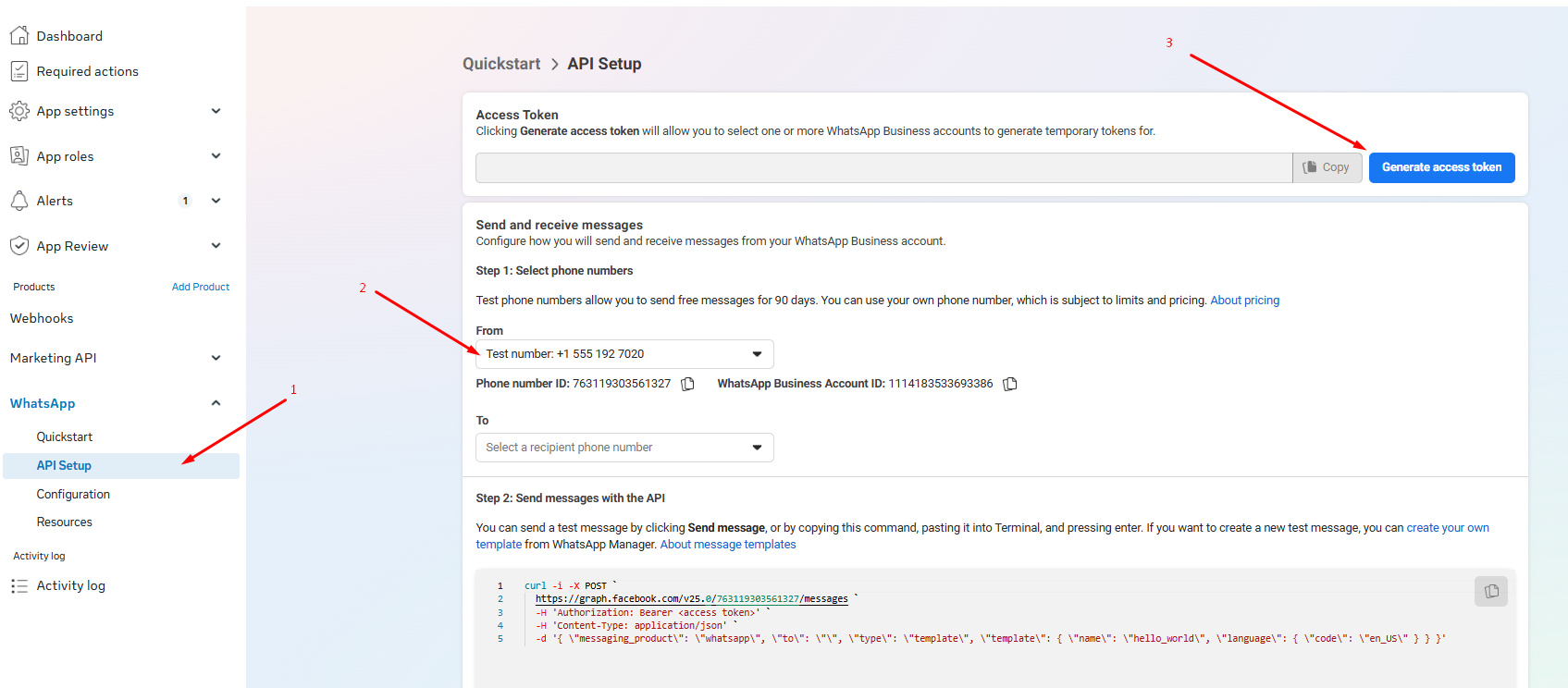
5. Go through all the steps in the new window, selecting the account that was connected in Step 4.
6. After successfully generating the token, send a test message by entering your personal phone number that has WhatsApp installed.
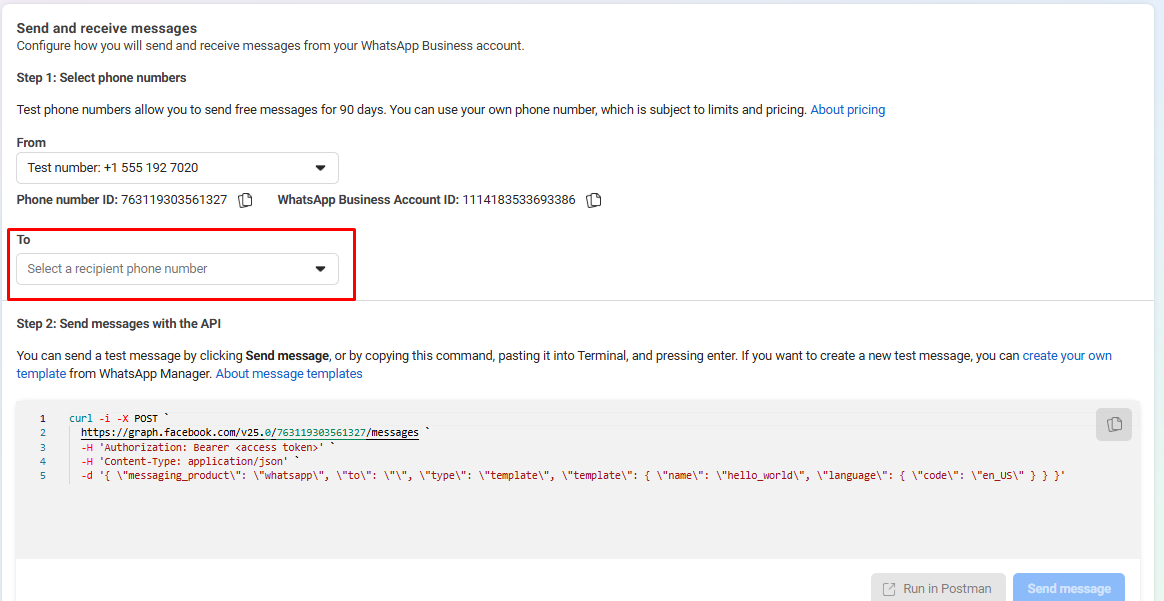
Even if an error occurred when sending the test message, don't worry. You have activated the number!